Beyond the Basics: A Webflow Creator's Guide to Advanced Canonical Tags
You’ve poured hours into your Webflow site. The design is pixel-perfect, the CMS is humming with fresh content, and you’re finally seeing traffic trickle in. But then, it stalls. Your beautiful blog, with its dozens of posts neatly organized into categories and pages, isn't ranking as you'd hoped. What’s going on?
The culprit might be an invisible SEO gremlin you’ve accidentally created: duplicate content.
It happens to the best of us. In a powerful platform like Webflow, it’s easy to generate multiple URLs that show the same or very similar content, especially with features like pagination and filtering. Search engines see these pages, get confused about which one is the "real" version, and split your hard-earned SEO authority between them.
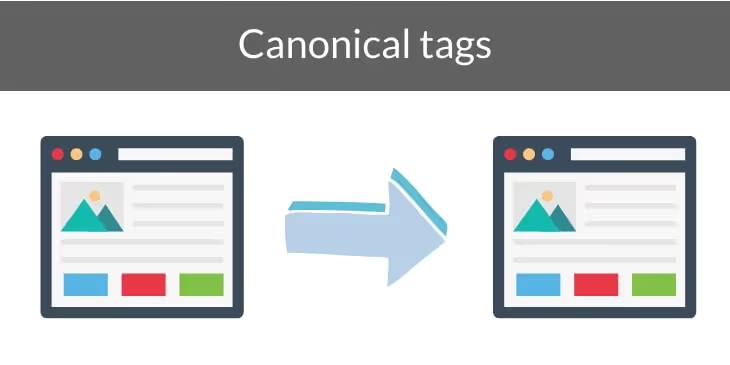
This is where the canonical tag comes in. It’s not just a technical setting; it’s a signpost you give to Google, telling it, "Of all these similar-looking pages, this is the master copy. Please direct all SEO credit here." Getting this right is the difference between a site that struggles and a site that dominates the search results.
What Are Canonical Tags, Really? (And Why They're Crucial for Webflow)
Imagine you have a popular document in your office. To make it accessible, you put copies in the breakroom, the conference room, and on the front desk. The problem? When people want to reference or link to it, they don't know which one to choose. The authority is scattered.
A canonical tag (rel="canonical") is like putting a big, official stamp on the original document in your file cabinet that says, "This is the definitive version."
In Webflow, this problem appears when your dynamic CMS creates multiple paths to the same content. For example, these URLs might all show your main "Gadgets" category page:
yourshop.com/products/gadgetsyourshop.com/products?category=gadgetsyourshop.com/products/gadgets?sort=price
Without a canonical tag, Google might see these as three separate, competing pages. With a canonical tag, you tell Google they are all just variations of one master page, consolidating their ranking power.
[Image: Diagram showing how multiple URLs point to one canonical URL, consolidating link equity.]
The Simple Start: Webflow's Global Canonical Tag
Webflow provides a basic, site-wide tool to get you started. In your Project Settings, under the SEO tab, you'll find the Global Canonical Tag URL.
This setting is designed to solve one specific problem: ensuring that search engines see https://www.yourdomain.com and https://yourdomain.com as the same site. You set your primary domain here, and Webflow automatically adds a canonical tag to every page, preventing this www/non-www duplication.
But here’s the crucial part: This global setting is just the beginning. It doesn't address the more complex duplicate content issues created by pagination or filters. Relying solely on the global tag is like using a hammer for every job in your toolbox it’s not the right tool for nuanced work. To truly take control, you need to go deeper.
Level Up: Mastering Canonicals for Dynamic Content
This is where we move from basic settings to strategic implementation. The real power of canonical tags in Webflow lies in applying them dynamically within your CMS collections for paginated blog posts and filtered e-commerce listings. Getting this right is a cornerstone of professional Webflow development.
The Pagination Puzzle: How to Handle Blog & Listing Pages
Let’s talk about your blog. When you have more posts than can fit on one page, Webflow’s pagination creates new URLs like /blog/page/2, /blog/page/3, and so on.
The Common Mistake: A common but harmful practice is to set the canonical tag for all paginated pages to point back to the very first page (/blog). This effectively tells Google to ignore the content on pages 2, 3, and 4, making it nearly impossible for those articles to be indexed and ranked.
The Right Way: Self-Referencing CanonicalsThe best practice, recommended by Google itself, is for each paginated page to have a self-referencing canonical tag. This means:
- The canonical URL for
/blog/page/2should be/blog/page/2. - The canonical URL for
/blog/page/3should be/blog/page/3.
This signals to Google that each paginated page is a unique and valuable part of a larger series, and that its content should be indexed.
How to Implement This in Webflow:Since this needs to be generated dynamically, you'll add a snippet of custom code to the <head> section of your CMS Collection Page settings.
[Image: Screenshot of Webflow's custom code section in Page Settings, highlighting where to paste the canonical tag code.]
- Go to the settings for your Blog Collection Page.
- Scroll down to the "Custom Code" section.
- In the
Inside <head> tagfield, paste the following code. This snippet dynamically constructs the full URL of the current page, including the pagination.
<script type_id="1d93198e-4f73-673c-967a-115f590a34c1">var host = window.location.host;var url = window.location.pathname;var canonical = document.createElement('link');canonical.rel = 'canonical';canonical.href = `https://`+host+url;document.head.appendChild(canonical);</script>
This simple script ensures that every paginated page correctly points to itself, resolving the duplicate content issue. If you're facing tight deadlines to resolve complex SEO issues like this, our WSC Hyperspeed service can implement these fixes rapidly.
The Filtering Conundrum: E-commerce & Resource Hubs
Filters are fantastic for user experience but can be a nightmare for SEO. Every time a user sorts by price or filters by color, a new URL with query parameters is often created (e.g., .../shop?color=blue&size=medium).
These filtered pages are classic duplicate content. You want Google to index your main /shop page, not a dozen variations of it.
The Solution: Canonicalize Back to the Main Category PageFor any page with filters or sorting parameters, the canonical tag should point back to the clean, primary category URL.
- The canonical for
/shop?color=blueshould be/shop. - The canonical for
/shop?sort=price-high-to-lowshould be/shop.
This consolidates all the "link equity" or ranking power from any links pointing to the filtered variations back to the main category page you actually want to rank.
How to Implement This in Webflow:You can add a static canonical tag to the <head> of the main collection page where your products or resources are listed.
[Image: A flowchart illustrating how filter URLs (e.g., /products?color=blue) should have a canonical tag pointing back to the main category page (/products).]
- Go to the settings for your main Shop or Products Collection Page.
- In the
Inside <head> tagsection, add the following, replacing the URL with your own:
<link rel="canonical" href="https://www.yourdomain.com/shop">
This tells Google that no matter what filters are applied, the "master copy" is always the main shop page.
Your Canonical Tag Audit Checklist
Feeling a little overwhelmed? Don't be. You can check your site's health with this quick audit.
- ✅ Check Your Global Canonical: Go to Project Settings > SEO. Is your primary domain (e.g.,
https://www.yourdomain.com) set correctly? - ✅ Inspect Paginated Pages: Go to a paginated page on your live site (like
/blog/page/2). Right-click, choose "View Page Source," and search (Ctrl+F or Cmd+F) for"canonical". Does the URL point to itself? - ✅ Test Filtered Pages: Go to a shop or listings page and apply a filter. View the page source and search for
"canonical". Does the URL point to the main category page without any parameters? - ✅ Use Google's URL Inspection Tool: In Google Search Console, you can enter any of your URLs and see which URL Google considers to be the "user-declared canonical." This is the ultimate source of truth.
Regular audits are key to maintaining a healthy site. If you prefer a hands-off approach, our site maintenance plans include ongoing SEO health checks to catch these issues before they become problems.
Frequently Asked Questions (FAQ)
What's the difference between a canonical tag and a 301 redirect?
A 301 redirect physically sends a user and search engine from one URL to another. It’s used for permanently moved or deleted pages. A canonical tag is just a hint for search engines; the user stays on the current URL. Think of it as "this page is a copy, but feel free to let users stay here."
Should I use a noindex tag on paginated pages instead?
Generally, no. A noindex tag tells Google to completely remove a page from its index, which means the content and any links on that page become invisible. For paginated pages, you want Google to crawl the content and follow the links to your articles. Self-referencing canonicals are almost always the better choice here.
What about rel="next" and rel="prev" tags for pagination?
These tags used to be a way to signal the relationship between paginated pages. However, Google announced in 2019 that they no longer use them for indexing purposes. While they don't hurt to have, focusing on implementing correct self-referencing canonical tags is far more important for your SEO performance.
From Duplicate to Dominant
Canonical tags are more than just a line of code; they are a fundamental tool for communicating your site's structure to search engines. By moving beyond Webflow's global setting and implementing dynamic, page-specific canonicals, you can solve complex duplicate content issues, consolidate your ranking power, and ensure your valuable content gets the visibility it deserves.
Mastering these details is what separates a good website from a great one. When you’re ready to build a site that's as technically sound as it is beautiful, we're here to help conquer your challenges together.